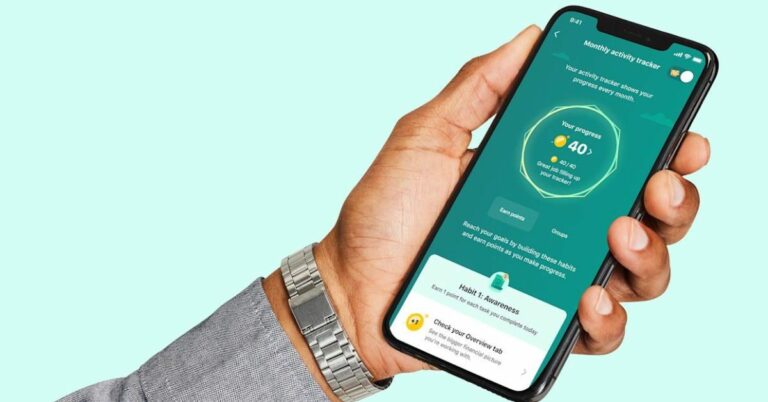
If you want to unlock hidden rewards in Samsung Pay, you need a clear plan that blends security, convenience, and smart earning.
Samsung’s payment experience now lives inside Samsung Wallet, which combines tap-to-pay with password management, passes, and device-level protection.



The result is a single app for paying in stores, online, and in apps with fewer steps. This guide explains features, reasons to use it, effective daily habits, and specific ways to surface extra value.
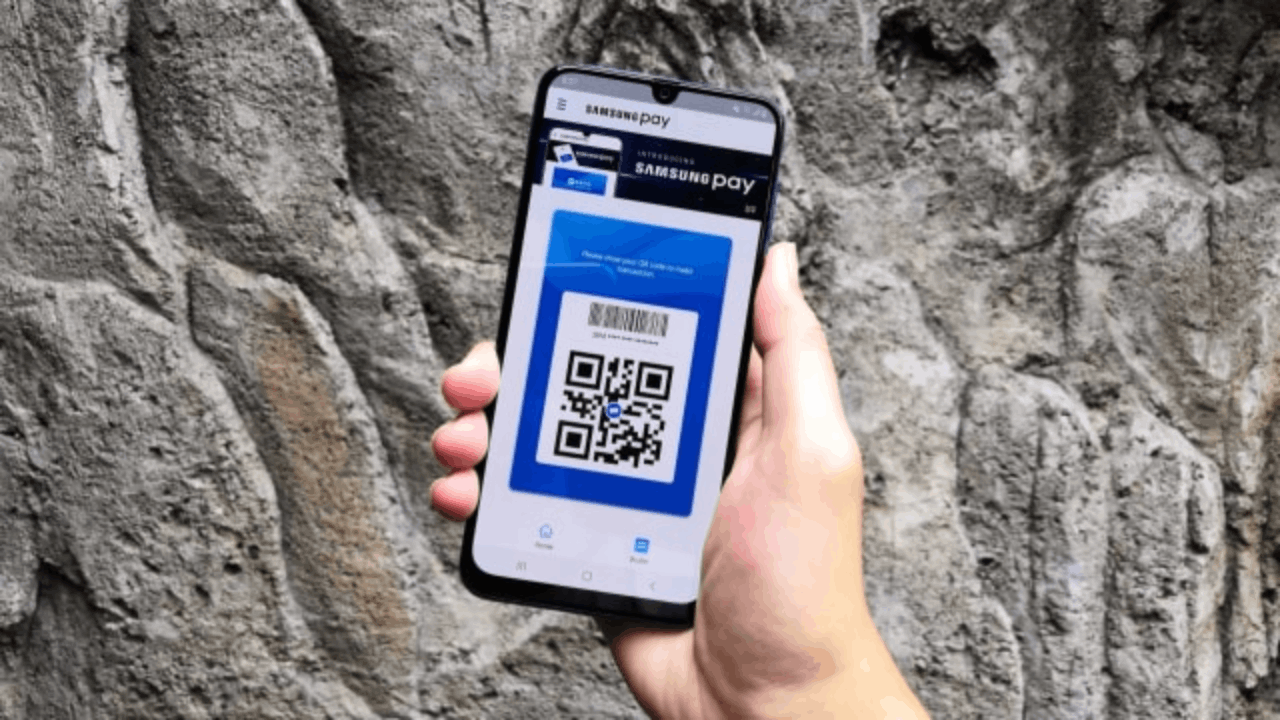
What Is Samsung Pay in 2025
Samsung Pay is the fast, secure payment layer within Samsung Wallet that lets you tap to pay anywhere NFC is accepted and check out in apps and online.
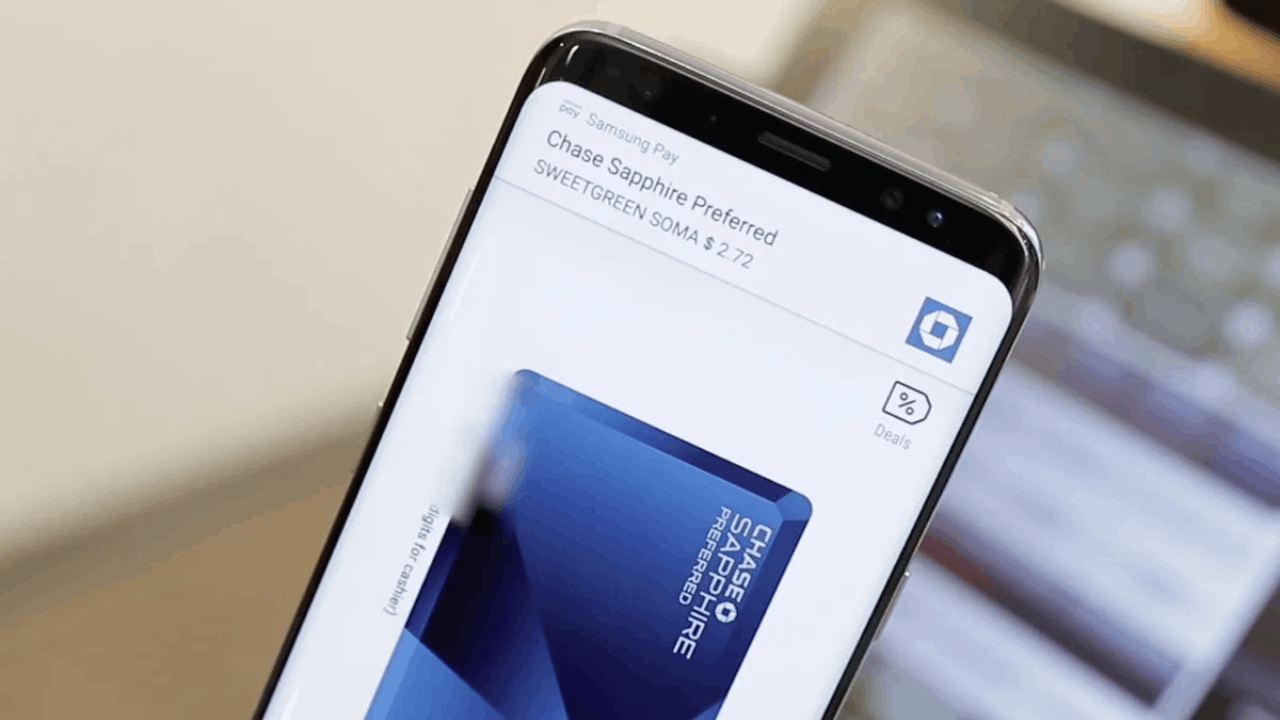
Samsung highlights hardware-backed protection through Samsung Knox, plus biometric authentication to keep payment data encrypted.
Wallet also pulls in IDs, passes, transit, and keys so the same app handles far more than purchases. The experience is designed to launch quickly from the Quick Access gesture on supported Galaxy devices.
Core Payments and Security You Can Trust
Tap to pay works where NFC is supported, while card data stays tokenized and shielded by on-device security.
Samsung Knox adds another layer by isolating sensitive elements and enforcing integrity checks in the background.
You can authenticate with fingerprint or other biometrics before transactions, which reduces risk from lost cards or skimming. These protections balance speed with strong safeguards for everyday purchases.
Wallet Extras That Reduce App Clutter
Because Samsung Pay sits inside Wallet, you can store payment cards, passes, membership IDs, and even certain digital keys.
That consolidation removes friction at gates, counters, and kiosks where you would otherwise juggle multiple apps.
Samsung’s FAQ also details how previously registered Samsung Pay cards appear and can be reactivated after migrating to Wallet. The setup keeps most of your prior information ready with minimal steps.
Acceptance and Device Support Notes
Samsung positions Wallet as a broadly accepted mobile payment option and notes compatibility with Galaxy phones and watches.
You can add cards on your phone and then use them on a Galaxy Watch, including when the watch is in Low Power mode.
Most watch features work without a paired phone and do not require an active data connection at tap. That flexibility helps when your phone battery is low or stowed away.
Why You Should Be Using Samsung Pay
The first reason is convenience, since your phone or watch becomes a secure wallet at checkout without exposing a physical card.
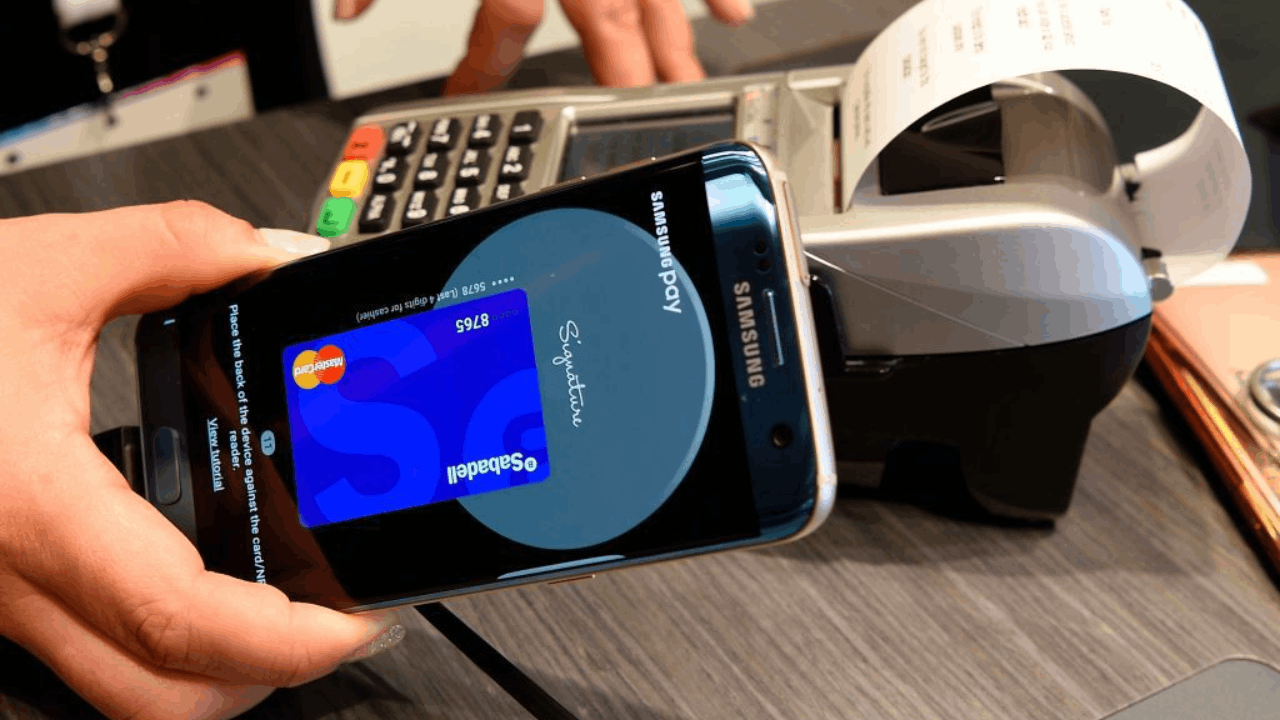
The second is organization, because Wallet centralizes payments, passes, and keys into one interface that opens with a swipe.
The third is security, driven by Knox and tokenization that limit what merchants see and store. The fourth is value, because Samsung Rewards and periodic promos turn routine spending into redeemable points.
Travel Days and Multi-Device Flexibility
Travel days are easier when boarding passes, payment cards, and eligible transit are stored together. Using a watch at turnstiles or coffee counters speeds lines and keeps your phone pocketed.
Wallet continues to function on the watch even without a direct phone connection or when power saving is on. The experience reduces stress when you are managing bags, tickets, and timing.
Privacy, Fraud Reduction, and Peace of Mind
Mobile payments replace static card numbers with network tokens, which are useless if intercepted. Biometric prompts before payment create a strong, familiar habit that mirrors unlocking your device.
Knox protection adds hardware-based defenses against tampering and data extraction. Together these measures lower the attack surface relative to plastic cards.
How to Use Samsung Pay Effectively
Start by adding primary debit and credit cards, then set a default for fast taps and a secondary for category bonuses.
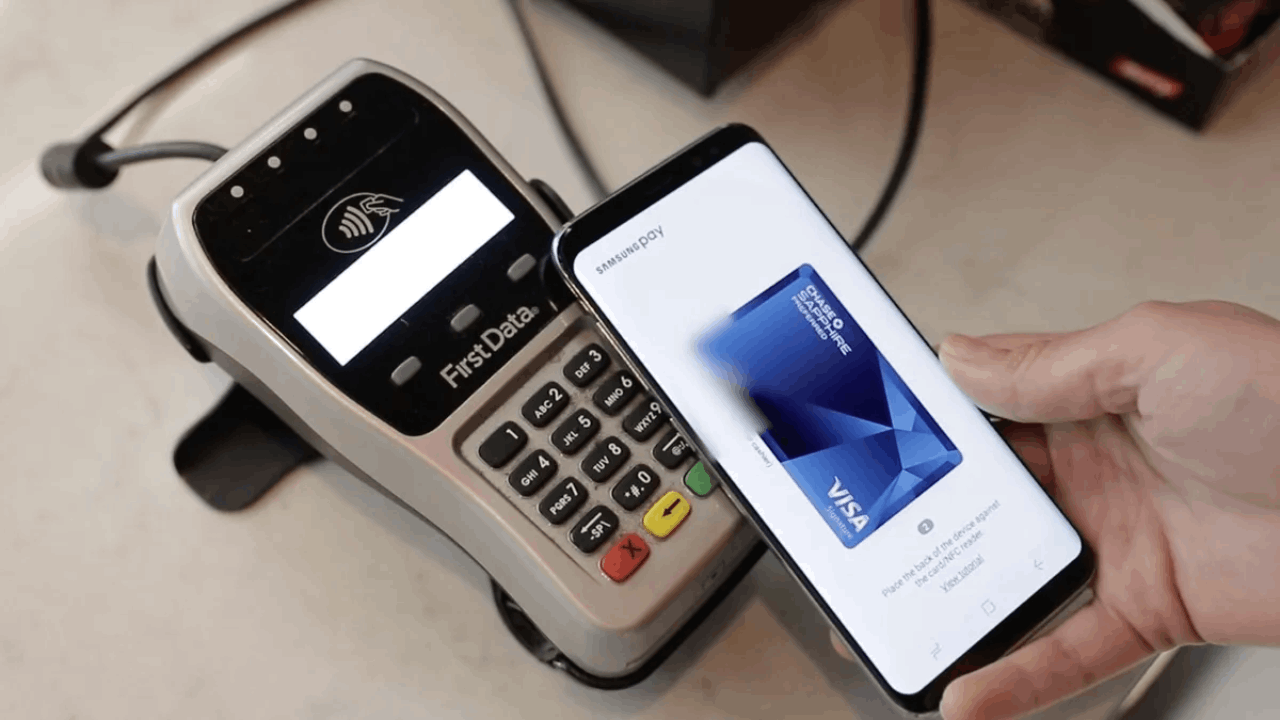
Review your bank’s mobile wallet terms to confirm contactless eligibility and any special earning rules for wallet transactions.
In stores, wake your device, authenticate, and hold near the terminal until the confirmation haptic or chime plays.
For online and in-app purchases, select Samsung Pay when offered to reuse your stored details securely.
Setup and First-Week Checklist
If you previously used Samsung Pay, open Wallet and activate the cards that already appear under Payment Cards.
Finish Wallet permissions, sign into your Samsung account, and enable Quick Access so the interface launches with a swipe.
Add your transit cards, passes, or keys if your market supports them to reduce app switching. Verify your default card and lock-screen preferences so taps stay quick but still require biometric approval.
Daily Use, Troubleshooting, and Pro Tips
If a terminal does not respond, re-authenticate and hold your phone closer to the NFC reader for a full second.
For watches, open Wallet on the watch and angle the face near the reader until the check mark appears.
When a merchant runs delayed charges, keep an eye on notifications to reconcile your budget categories. If a card fails tokenization, contact your issuer to enable wallet provisioning for that product.
Managing Installments and New Payment Tricks
In select regions, Samsung Wallet supports splitting in-store transactions into installments using your existing Visa or Mastercard through an integrated partner.
The feature avoids opening new lines of credit and offers multiple schedules so you can pick a plan that matches cash flow.
If you do not select a plan within the specified window, the charge posts as normal. Always review fees and availability because rollout is staged by state and market.
How to Unlock Hidden Rewards in Samsung Pay
Samsung Rewards is the foundation, awarding points for eligible Samsung purchases and Wallet spend, with redemptions on Samsung’s channels.
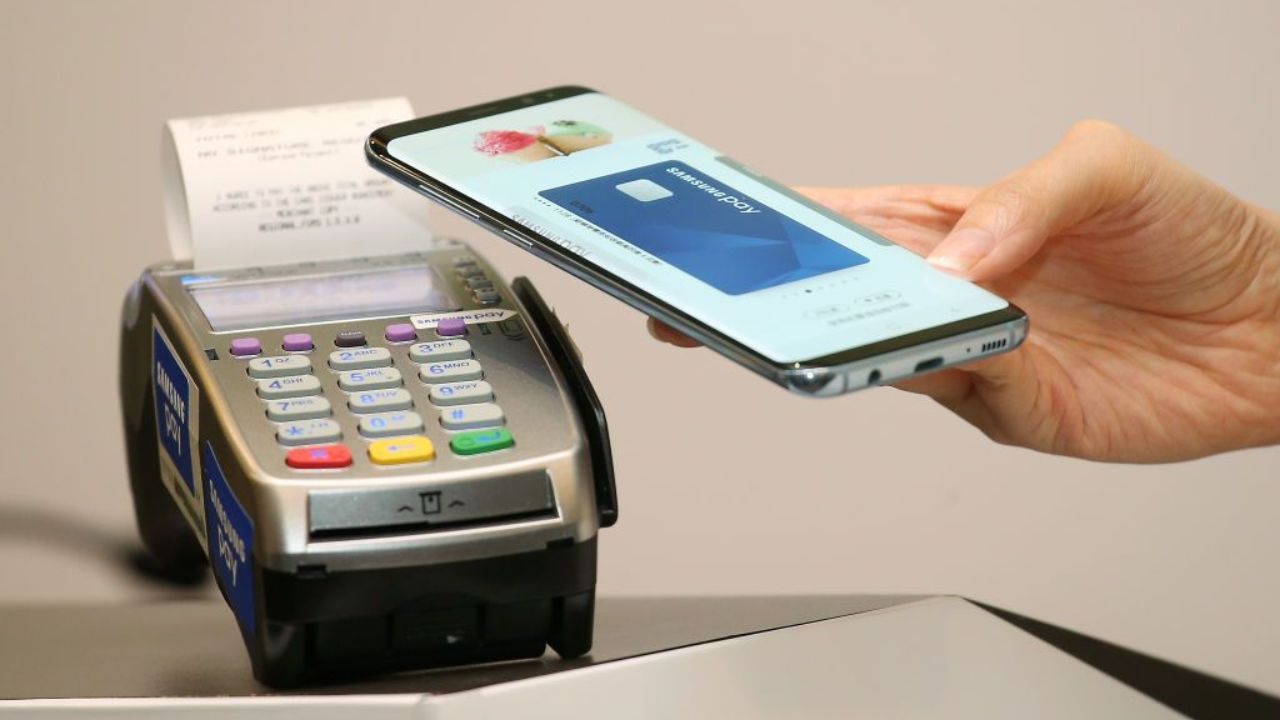
Earning rates can increase based on tiers or promos, and Samsung periodically advertises limited-time boosts.
The Rewards hub shows your balance and allows partial redemptions at checkout when logged into your Samsung account. Treat points as cash-equivalent credits that reduce device or accessory costs.
Use the Perks and Promotions Layer Inside Wallet
Open the Perks or Rewards areas in Wallet to find rotating offers that apply when you pay with a stored card through Samsung Pay.
These promos often require activation or a minimum spend, and they can stack with your card’s native category bonuses.
Some markets run rewards boosts when you redeem Samsung Rewards points on qualifying products, increasing discount value during defined windows. Checking Perks weekly prevents you from missing short-window deals or localized campaigns.
Stack Rewards with Card Multipliers and Store Campaigns
Pair Wallet with a card that earns extra on groceries, dining, or transit, and confirm the issuer counts wallet taps as eligible.
When retailers run their own campaigns, pay with Samsung Pay to capture the store promotion, your card’s bonus, and any Wallet-specific offer.
If you shop Samsung.com or the Shop Samsung app, tie those purchases to your Samsung account so Rewards points accrue correctly. Redeem points toward future orders to compound value across shopping seasons.
Explore New Features That Add Earn or Utility
Samsung is rolling out Tap to Transfer for peer-to-peer payments by tapping devices or sending to a phone number, which can streamline shared expenses.
Wallet integrations are also expanding, including optional installment flows and select partner tie-ins that simplify buying or funding.
These updates broaden where Samsung Pay adds utility, even when you are not at a checkout terminal. Watch feature announcements because new capabilities often arrive with introductory promos.
Mind Regional Terms and Rewards Nuances
Samsung Rewards language varies by country, and local pages list eligibility, redemption paths, and time-bound boosts.
Some markets emphasize point redemptions on Galaxy Store or specific product lines, while others focus on sitewide checkout.
Read the small print on each campaign to confirm which purchases qualify and how the discount is calculated. Align your big orders with high-value windows to extract more value from the same spend.
Conclusion
To truly unlock hidden rewards in Samsung Pay, combine Wallet’s secure payments with a weekly habit of checking Perks and your Rewards balance.
Keep your best bonus card set as default, redeem points during high-value windows, and use installment tools carefully when available.With a little structure, your Galaxy turns routine taps into measurable savings and long-term benefits.